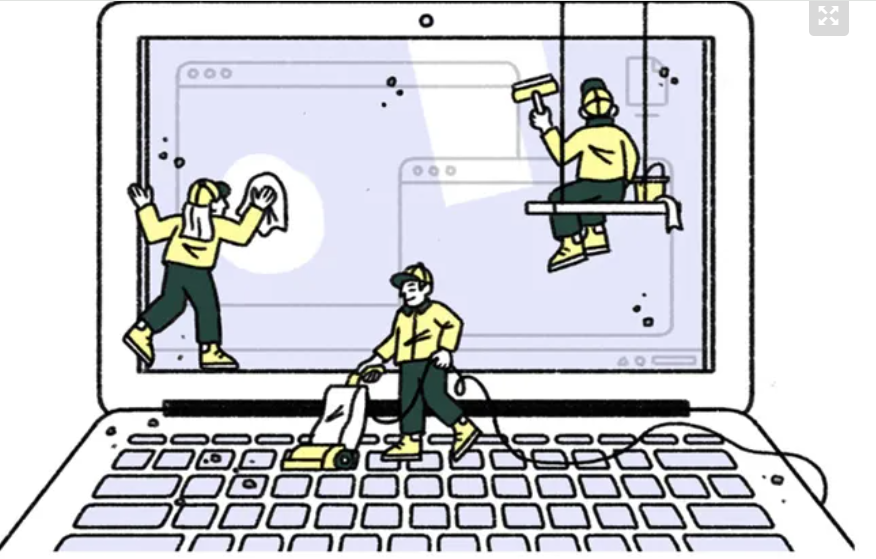
When you notice that your Windows computer starts to work slowly you do not have to launch yourself to buy a new one. Using a slow laptop is frustrating, but first of all try these tricks to increase the speed of your Windows 7, 8 or 10 PC.
When your Windows computer starts running slow what you most want is to throw it out the window and buy a new laptop. The more slowly everything is loaded on the screen the faster our level of anger, despair and lack of patience increases.
However, before getting rid of your slow laptop you can try some tricks to increase the speed of your PC in Windows 7, 8 or 10. You will be surprised how simple and effective they are.

Find out which programs are consuming the most energy
If your computer is running slow it is probably because there is something using all the resources. You can find out which application or process is using all the energy through the Task Manager.
To access it look for ‘Task Manager’ in the start bar. If you do not automatically see a table with all the processes click on ‘More details’. Under the process section you can see which apps or processes are using more resources. You can end them by selecting it and clicking on ‘End Task’ on the bottom right.
Close the start or stop programs
You can check which startup programs are running in the background. To do this, click on the up arrow in the right corner to open the notification center and close the programs you do not want to use by clicking on the right side of the button and on ‘Exit’, ‘Close’, ‘Exit’ or similar.
You can also prevent these programs from running when you log in. Open the task manager again, go to the ‘Start’ section and deactivate the programs or applications that you do not need to start when you turn on your computer. You can do it by clicking on the program and selecting ‘Disable’ down in the right corner.
Turn off animations
One of the causes that can cause a Windows to work slowly are the animations. To deactivate them, access ‘Systems’ through the start bar, open the ‘System’ section and choose ‘Advanced system configuration’ in the left sidebar. Access the performance configuration and choose the ‘Adjust to get the best performance’ option.
Speed up your browser
The most likely is that you use your browser a lot, and that it is consuming a lot of energy. That’s why you’re interested in making your browser as light as possible. To do this, delete or deactivate all extensions that you do not use.
Search and remove Malware or Adware on your computer
Use an antivirus program to verify that you do not have Malware or Adware on your computer. You can use Malwarebytes to detect programs that sneak into your computer when you install software and tend to go unnoticed.
If after trying all these tricks your Windows computer keeps running slowly we advise freeing hard disk space by eliminating, among other things, programs that you do not use. This can greatly increase the speed of your PC.
If your laptop still charges slowly, you can try resetting your PC. You will keep your files but it will clean all the programs, being similar to reinstalling Windows. You can find the function by searching for ‘Reset this device’ in the start bar.
Tags: Increase The Speed, PC, Slow Windows PC, Windows, Windows PC