Buzz Up
  • Home
  • Automotive
    • Cars
    • Motorcycle
  • Business
    • Finance
    • Planning
    • Trading
  • Buzz
  • Entertainment
    • Games
    • Movies & TV
    • Music
  • LifeStyle
    • Career
    • Health
    • Home
    • Travel
  • Showbizz
    • Fashion
    • Gossip
  • Tech
    • Applications
    • Computing
    • Phones & Gadgets
    • Science
Home  /  Applications • Business  /  4 Tasks of Excel For The Business Intelligence Of Your Business

4 Tasks of Excel For The Business Intelligence Of Your Business

Eleena Brown August 17, 2018 Applications, Business Comments are off
Excel For The Business

To save time and gain efficiency with spreadsheets, we tell you up to five tasks or functions that you can perform automatically in Excel. Take good note of them!

Managing Microsoft Excel with ease is practically an indispensable condition for gaining a foothold in the world of technology or business. While many companies use the application only for basic calculations, graphs and analysis, others use the tool for Business Intelligence, collaborative work, preparing budgets or preparing invoices. If you can even design a web from Excel!

If on other occasions we have talked about the best shortcuts in Excel or we have provided you with valuable templates to integrate the program into your business activity, today we want to review five powerful tasks that you can carry out with Excel to improve your business intelligence.
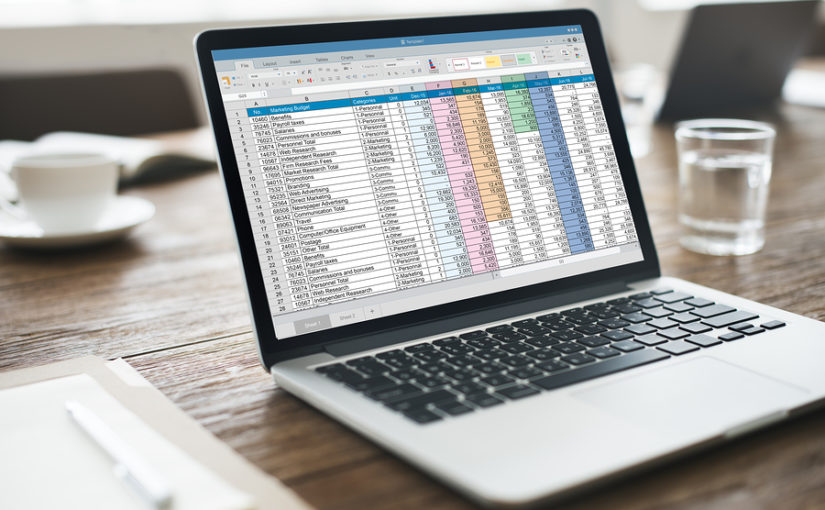
 Excel For The Business

4 Tasks of Business Intelligence with Excel

1) Make a map from the spreadsheet: To do this you must have an image in the .jpg, .bmp or .png file format, as well as data related to the image that Power Map can trace on your personalized map through a system of XY coordinates. Then, follow the steps below:

  • In Excel, open the book in which you have the data of the X and Y coordinates of the images.
  • Click Insert> Map.
  • Click on New route.
  • In Power Map, click on Start> New Scene.
  • Select New Custom map. Click Browse for the background image button, find the image you want to use, select it and click

2) Combine other data sources with Excel workbooks: Most companies store their data in a variety of formats, from spreadsheets to demographic databases or CAD drawings, for example. To integrate your spreadsheets with data from hundreds of other formats you can import them through various types of software such as FME. In this way, you will greatly improve the quality control and analysis.

3) Turn data: You can create useful summaries and statistics sheets by transposing or rotating the data. This function is executed in the following way:

  • Select the range of data you want to rearrange, including row or column labels, and press Ctrl + C.
  • Select a new location in the spreadsheet where you want to paste the transposed table, making sure there is enough space to paste the data. The new table that there is to paste completely will overwrite the data or format that already exists.
  • Click with the button on the upper left cell from where you want to paste the transposed table and then choose Transpose image of the Transpose button.
  • After turning the data correctly, you can delete the original table, since the data in the new table remains intact

4) Reduce the size of an Excel workbook to view it in Power BI: Microsoft highlights the following: If the report respects the following size limits, you can save it in OneDrive for Business, connect to it from Power BI and view it in Excel Online. In terms of size, the book as a whole can be up to 1 MB, while the content of the main spreadsheet can be up to 10 MB.

Tags: Business Intelligence, Excel

Next Article

About Author

Eleena Brown

Related Posts

  • Discover how to design intuitive booking forms that simplify reservations. Boost conversions with proven UX best practices, clean layouts, and seamless flows.

    How to Design Booking Forms That Make Reservations Easy

    August 20, 2026
  • Learn how to compare office and retail spaces before signing a lease. Evaluate foot traffic, zoning, hidden costs, and terms to find the right location.

    The Commercial Space Checklist: How to Compare Office and Retail Locations Before Signing a Lease

    August 19, 2026
  • Discover how to choose the right gym flooring for sports, fitness, and multi-use spaces. Compare durable, shock-absorbing materials for any budget and facility.

    How to Choose the Right Gym Flooring for Sports, Fitness, and Multi-Use Spaces

    August 19, 2026

Recent Posts

  • Coral bleaching on a Miami reef during warm ocean conditions
    Why Corals Bleach Fast in Miami, FL August 22, 2026
  • Baby relaxing in a shaded stroller at a Duluth fair
    How to Keep Babies Cool at Crowded Duluth, MN Fairs August 22, 2026
  • Turn equity holdings into a structured financial strategy. Learn how to manage risk, optimize taxes, and align company stock with your long-term wealth goals.
    Turning Equity Holdings Into a Planned Financial Strategy August 21, 2026
  • Don’t Buy Blind: How to Decode a THCA Flower Label August 21, 2026
  • Discover how flexible pay empowers today’s workforce with greater financial peace of mind. Boost employee retention, reduce stress, and build a thriving team.
    Flexible Pay, Greater Peace of Mind: Supporting Today’s Workforce August 21, 2026
  • Involved in an NYC motorcycle accident? Protect your rights with this step-by-step guide on medical care, police reports, and securing compensation in New York.
    What To Do After a Motorcycle Accident in New York City August 21, 2026

Categories

  • Applications
  • Automotive
  • Business
  • Buzz
  • Career
  • Cars
  • Computing
  • Entertainment
  • Fashion
  • Finance
  • Foreign Article
  • Games
  • Gossip
  • Health
  • Home
  • LifeStyle
  • Motorcycle
  • Movies & TV
  • Music
  • Phones & Gadgets
  • Planning
  • Science
  • Showbizz
  • Tech
  • Trading
  • Travel

Quick Links

  • Home
  • About
  • Terms
  • Contact Us
  • Privacy Policy
Theme by ThemesPie | Proudly Powered by WordPress